


Everything you need to know, all in one place.
This guide covers everything you need to log in, navigate your admin account, and understand how students earn BiziBucks.

As an administrator, you have the highest level of access in Bizi — from managing the School Store and monitoring school-wide activity to configuring settings and staff permissions. This guide will help you get oriented quickly so you can focus on what matters most: building a positive school culture. Logging in takes less than a minute, and once you’re in, everything you need is right at your fingertips.
How to log in
Bizi connects directly to your existing district credentials. No new username or password to remember. Just follow these steps:
Trouble logging in? Contact Bizi support by emailing support@bizimotivates.com.
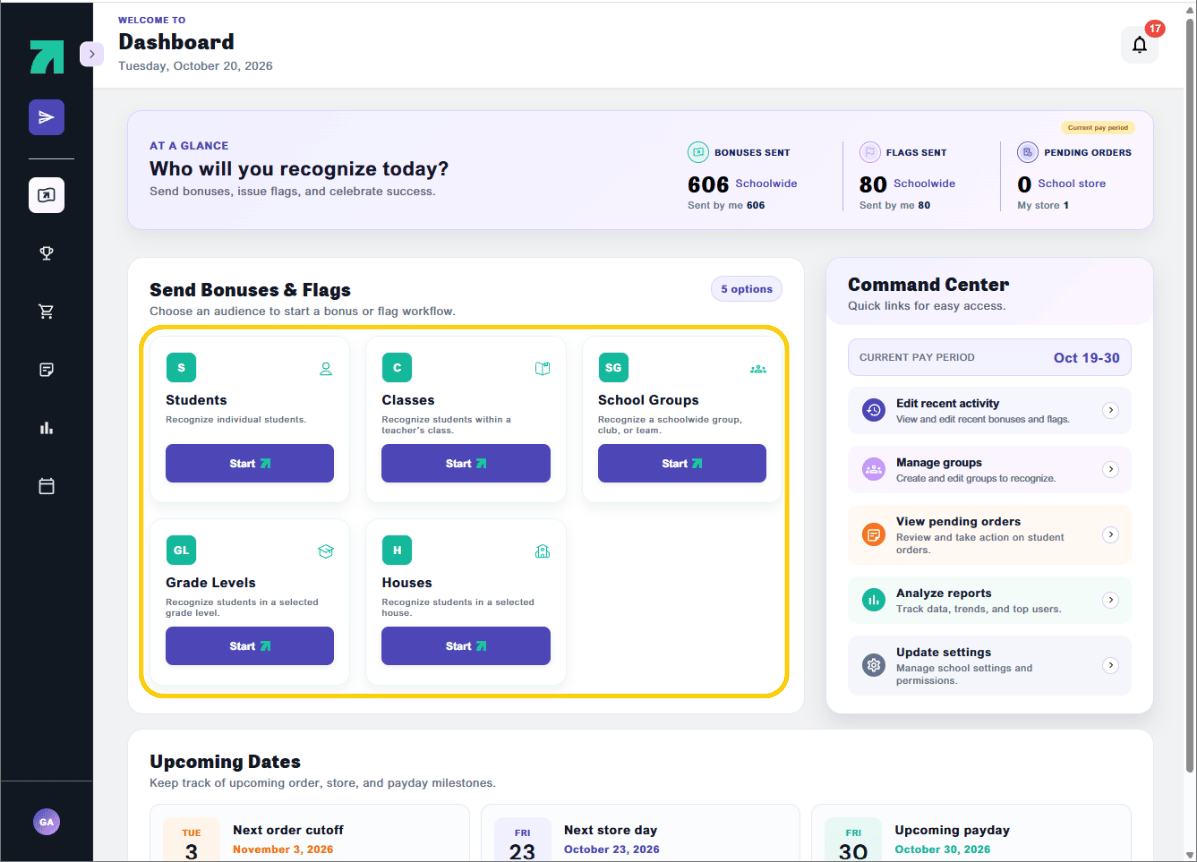
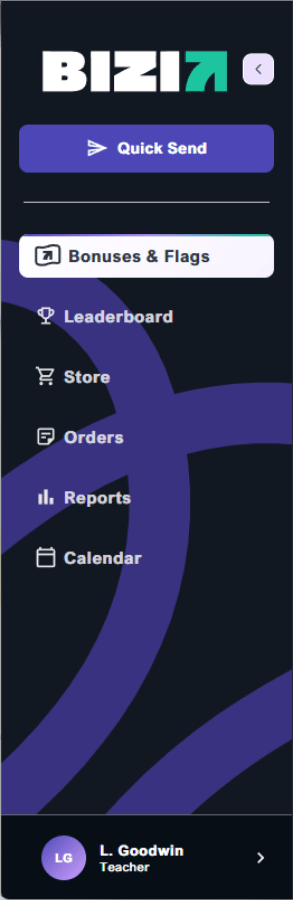
Navigate Bizi through the side rail:
Quick Send: Need to recognize a student outside your roster? Use Quick Send to issue a bonus or flag to any student at your school.
Leaderboard: A quick look at who is leading the way from each grade and class.
Store: The Store is where students shop using their Bizi points. As an admin, you have full control of the School Store. Add new items, adjust inventory, or edit listings as needed to keep things up to date.
Orders: View all orders placed by students in one place. From here you can:
Reports: Reports give you a real-time picture of how students and teachers are doing across your school. Access data on total balance, usage rates, attendance, behavior, academic grade averages, purchase activity, and bonus and flag statistics. Use Reports regularly to spot trends, celebrate engaged teachers, and identify students who may benefit from extra encouragement.
Calendar: Stay on top of important dates. Order cutoffs, store days, and academic pay days are all here, so you're never caught off guard.
Account Menu (your initials): Access the Admin Toolbox, Teacher Toolbox, the "How to Earn" guide, Contact Us, Settings, Terms and Policies, or log out.
Your school's settings were configured during onboarding, but things change, and Bizi makes it easy to adjust on the fly. Use the Settings menu to keep your Bonus and Flag categories, Store schedule, and staff permissions aligned with how your school actually operates. Access Settings anytime through your Account Menu.
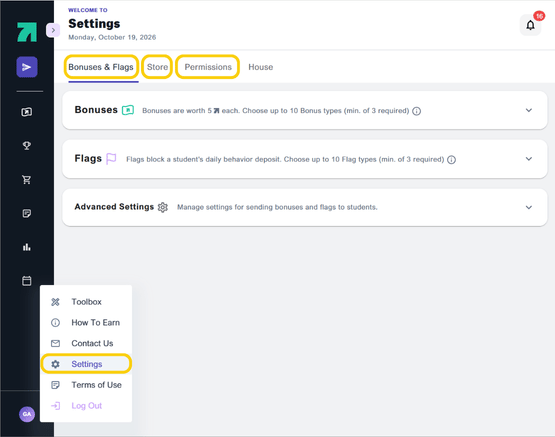
Bonus and Flag Settings: Choose from existing Bonus and Flag categories or create your own custom categories that reflect your school's values and expectations. Custom categories are available to all staff when awarding bonuses or flags to students.
Store Settings: Edit or delete store cutoff dates and store days as your school's schedule changes throughout the year. Keeping these dates accurate ensures students always see the correct estimated arrival date when placing an order.
Staff Permissions: Assign different levels of access to staff members based on their role at your school. Hover over the "i" next to each permission level to see exactly what it allows before making changes.
There are four ways to earn:
As an administrator, you can award bonuses and issue flags just like any teacher, but your reach is school-wide. Whether you're walking the halls, covering a class, or recognizing a student at a school event, Bizi gives you the ability to act on the spot. Bonuses or flags take less than 30 seconds to send, can be done by your computer or phone, and can be edited or removed.
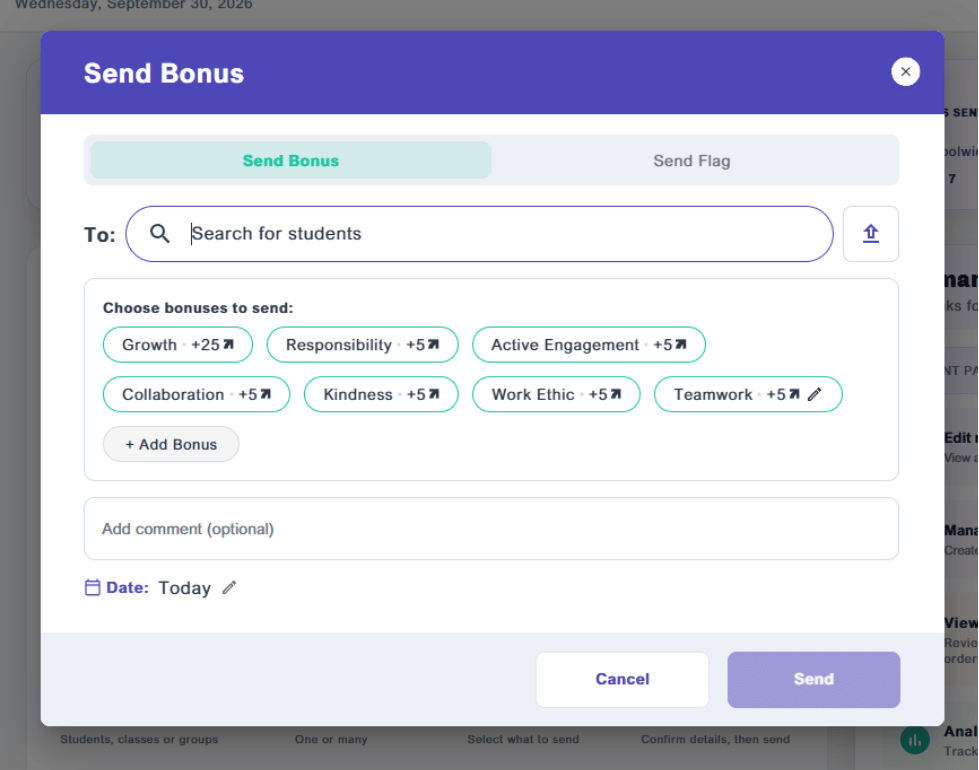
Using the Students option is ideal when you want to recognize or flag a student outside of your normal class roster, like in the hallway, at lunch, or during a school-wide event.
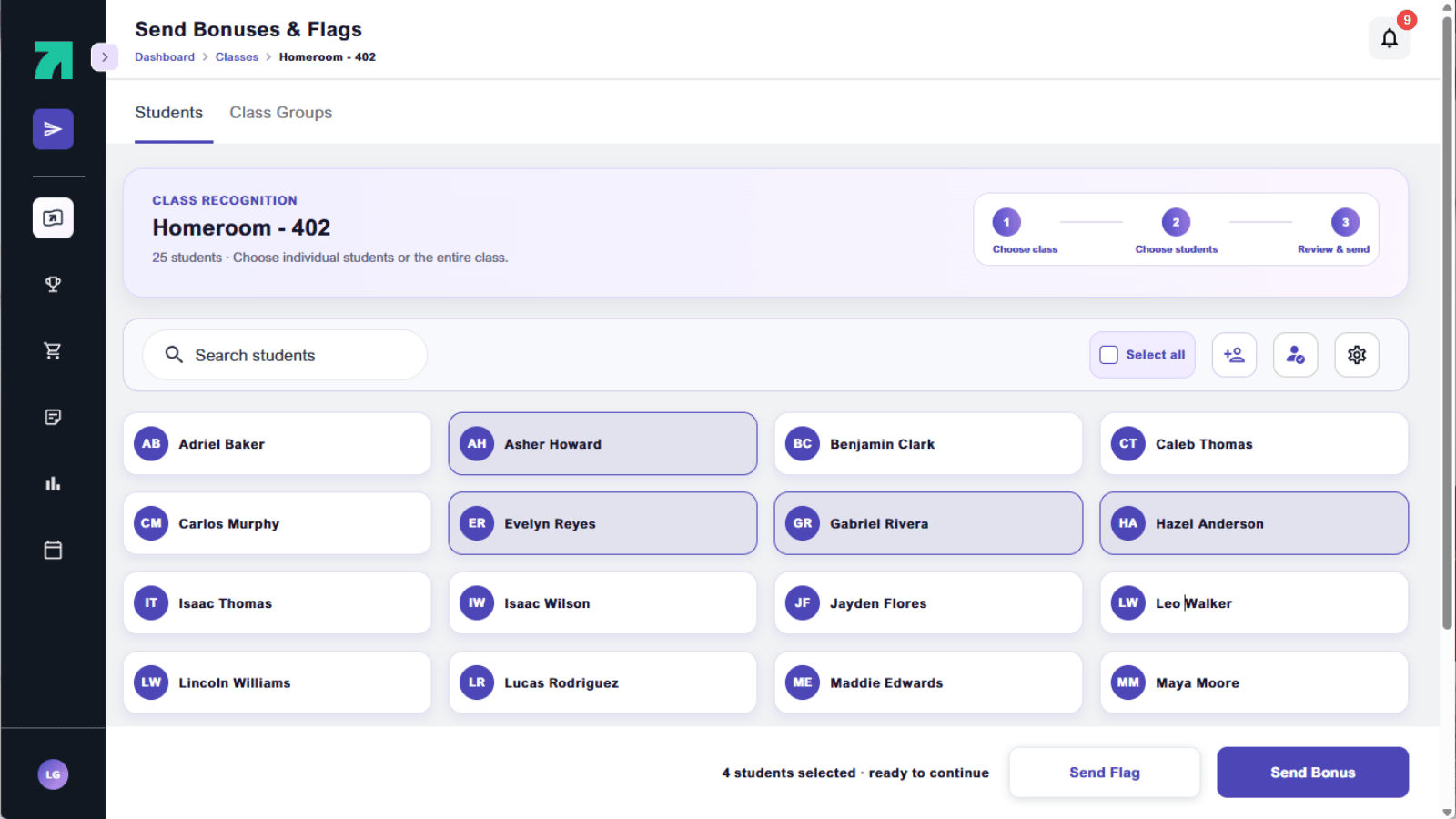
For everyday classroom use, your class roster lets you send bonuses or flags to one student, a few, or your entire class at once.
*Tip: To send to your an entire class at once, click Select All in the top right before choosing your action.
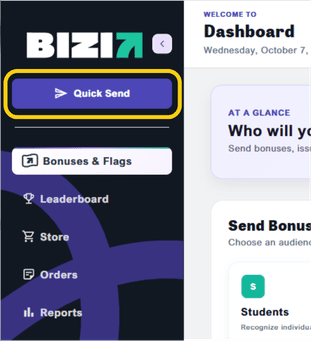
Just like Clicking the Students tile, Quick send allows you to send a bonus or a flag to any individual student in the school, but you can send it quickly from the side rail from anywhere in Bizi.
Custom categories allow you to create a bonus or flag for personal use. To create one, click Quick Send, then select Add Bonus or Add Flag at the bottom of the category list. Type your new category name and click Save. This bonus or flag will be available only to you.
*Note: You can manage school-wide Bonus and Flag categories in bulk from your Settings menu, which gives you additional control over what categories are available to all staff members.
Sent something by mistake or need to make a correction? No problem. Everything you've issued in the past two weeks lives in Recent Activity on your landing page.
*Note: Recent Activity shows the past two weeks of your issued bonuses and flags. For older activity, use the Reports section.
Before launch, your school will meet with the Bizi onboarding team to configure the platform specific to your school. That includes setting up your Bonus and Flag categories, building out the School Store with your chosen rewards, aligning on store logistics and order fulfillment processes, and planning your faculty onboarding. The goal is to make sure your team is set up with the right structure and the right mindset before the first student logs in.
Go to your Account Menu, select Settings, then Permissions. Each staff member can be assigned one or more of the following permission Levels.
Go to Edit Recent Activity in the Command Center on the right side of your Dashboard. Find the student and click Edit. From there, you can update the category, revise the comment, or remove it entirely.
Go to Reports and click the Usage tab. You will see a list of every teacher along with their bonus count, flag count, date last used, and whether they have set up their own Store. This is one of the most useful views for identifying which staff members may need additional encouragement or support. For a school-wide summary, click the School tab and look at the teacher usage rate. Use the date range filter to narrow down to a specific pay period or time frame.
Yes. The Reports section gives you access to both school-wide data on the School tab and individual student records on the Student tab. You can view BiziBucks earned, attendance, behavior, academic grade averages, bonus and flag history, and purchase activity at the student level. Filter by class, grade level, teacher, or date range to get the view you need.
Yes. Go to your Account Menu, select Settings, and open Advanced Settings. From there, toggle off "Teachers and staff can create a bonus or flag type." Once disabled, teachers will only be able to use the categories you have set up at the school level.
Every item added to a Bizi Store is reviewed and approved by a Bizi team member before it goes live. Anything inappropriate is flagged and removed immediately, and the teacher receives a follow-up email. While you do not need to monitor store submissions manually, you can review the items added to any store on the Usage tab on the Reports page.
Go to your Account Menu and select Settings. Under Bonus and Flag Settings, you can choose from existing categories or create custom ones that reflect your school's values and expectations. Custom categories are available to all staff immediately. You can also create Power Bonuses here to increase the BiziBuck value of a specific category, useful for highlighting core values or running special recognition campaigns.
Go to your Account Menu, select Settings, and click the Store tab. From there, you can edit existing store dates, update order cutoff dates, or remove a store date entirely. Keeping these dates accurate is important; students see estimated arrival dates when they place orders, and those dates pull directly from your store schedule.
Go to your Account Menu, click Contact Us, and send us a message. You can also access the Admin Toolbox and Teacher Toolbox anytime from your Account Menu for additional resources and guides.
This guide covers everything you need to log in, navigate your admin account, and understand how students earn BiziBucks.
As an administrator, you have the highest level of access in Bizi — from managing the School Store and monitoring school-wide activity to configuring settings and staff permissions. This guide will help you get oriented quickly so you can focus on what matters most: building a positive school culture. Logging in takes less than a minute, and once you’re in, everything you need is right at your fingertips.
How to log in
Bizi connects directly to your existing district credentials. No new username or password to remember. Just follow these steps:
Trouble logging in? Contact Bizi support by emailing support@bizimotivates.com.
Navigate Bizi through the side rail:
Quick Send: Need to recognize a student outside your roster? Use Quick Send to issue a bonus or flag to any student at your school.
Leaderboard: A quick look at who is leading the way from each grade and class.
Store: The Store is where students shop using their Bizi points. As an admin, you have full control of the School Store. Add new items, adjust inventory, or edit listings as needed to keep things up to date.
Orders: View all orders placed by students in one place. From here you can:
Reports: Reports give you a real-time picture of how students and teachers are doing across your school. Access data on total balance, usage rates, attendance, behavior, academic grade averages, purchase activity, and bonus and flag statistics. Use Reports regularly to spot trends, celebrate engaged teachers, and identify students who may benefit from extra encouragement.
Calendar: Stay on top of important dates. Order cutoffs, store days, and academic pay days are all here, so you're never caught off guard.
Account Menu (your initials): Access the Admin Toolbox, Teacher Toolbox, the "How to Earn" guide, Contact Us, Settings, Terms and Policies, or log out.
Your school's settings were configured during onboarding, but things change, and Bizi makes it easy to adjust on the fly. Use the Settings menu to keep your Bonus and Flag categories, Store schedule, and staff permissions aligned with how your school actually operates. Access Settings anytime through your Account Menu.
Bonus and Flag Settings: Choose from existing Bonus and Flag categories or create your own custom categories that reflect your school's values and expectations. Custom categories are available to all staff when awarding bonuses or flags to students.
Store Settings: Edit or delete store cutoff dates and store days as your school's schedule changes throughout the year. Keeping these dates accurate ensures students always see the correct estimated arrival date when placing an order.
Staff Permissions: Assign different levels of access to staff members based on their role at your school. Hover over the "i" next to each permission level to see exactly what it allows before making changes.
There are four ways to earn:
As an administrator, you can award bonuses and issue flags just like any teacher, but your reach is school-wide. Whether you're walking the halls, covering a class, or recognizing a student at a school event, Bizi gives you the ability to act on the spot. Bonuses or flags take less than 30 seconds to send, can be done by your computer or phone, and can be edited or removed.
Using the Students option is ideal when you want to recognize or flag a student outside of your normal class roster, like in the hallway, at lunch, or during a school-wide event.
For everyday classroom use, your class roster lets you send bonuses or flags to one student, a few, or your entire class at once.
*Tip: To send to your an entire class at once, click Select All in the top right before choosing your action.
Just like Clicking the Students tile, Quick send allows you to send a bonus or a flag to any individual student in the school, but you can send it quickly from the side rail from anywhere in Bizi.
Custom categories allow you to create a bonus or flag for personal use. To create one, click Quick Send, then select Add Bonus or Add Flag at the bottom of the category list. Type your new category name and click Save. This bonus or flag will be available only to you.
*Note: You can manage school-wide Bonus and Flag categories in bulk from your Settings menu, which gives you additional control over what categories are available to all staff members.
Sent something by mistake or need to make a correction? No problem. Everything you've issued in the past two weeks lives in Recent Activity on your landing page.
*Note: Recent Activity shows the past two weeks of your issued bonuses and flags. For older activity, use the Reports section.
Before launch, your school will meet with the Bizi onboarding team to configure the platform specific to your school. That includes setting up your Bonus and Flag categories, building out the School Store with your chosen rewards, aligning on store logistics and order fulfillment processes, and planning your faculty onboarding. The goal is to make sure your team is set up with the right structure and the right mindset before the first student logs in.
Go to your Account Menu, select Settings, then Permissions. Each staff member can be assigned one or more of the following permission Levels.
Go to Edit Recent Activity in the Command Center on the right side of your Dashboard. Find the student and click Edit. From there, you can update the category, revise the comment, or remove it entirely.
Go to Reports and click the Usage tab. You will see a list of every teacher along with their bonus count, flag count, date last used, and whether they have set up their own Store. This is one of the most useful views for identifying which staff members may need additional encouragement or support. For a school-wide summary, click the School tab and look at the teacher usage rate. Use the date range filter to narrow down to a specific pay period or time frame.
Yes. The Reports section gives you access to both school-wide data on the School tab and individual student records on the Student tab. You can view BiziBucks earned, attendance, behavior, academic grade averages, bonus and flag history, and purchase activity at the student level. Filter by class, grade level, teacher, or date range to get the view you need.
Yes. Go to your Account Menu, select Settings, and open Advanced Settings. From there, toggle off "Teachers and staff can create a bonus or flag type." Once disabled, teachers will only be able to use the categories you have set up at the school level.
Every item added to a Bizi Store is reviewed and approved by a Bizi team member before it goes live. Anything inappropriate is flagged and removed immediately, and the teacher receives a follow-up email. While you do not need to monitor store submissions manually, you can review the items added to any store on the Usage tab on the Reports page.
Go to your Account Menu and select Settings. Under Bonus and Flag Settings, you can choose from existing categories or create custom ones that reflect your school's values and expectations. Custom categories are available to all staff immediately. You can also create Power Bonuses here to increase the BiziBuck value of a specific category, useful for highlighting core values or running special recognition campaigns.
Go to your Account Menu, select Settings, and click the Store tab. From there, you can edit existing store dates, update order cutoff dates, or remove a store date entirely. Keeping these dates accurate is important; students see estimated arrival dates when they place orders, and those dates pull directly from your store schedule.
Go to your Account Menu, click Contact Us, and send us a message. You can also access the Admin Toolbox and Teacher Toolbox anytime from your Account Menu for additional resources and guides.






See Bizi in action.
Made for schools who
show up for students.
Download Bizi
for Educators


![[headshot] image of customer for a consulting firm](https://cdn.prod.website-files.com/6a4e78ccec3ae84519ed2bce/6a4e78ccec3ae84519ed2d1e_Container.png)
![[headshot] image of customer for a consulting firm](https://cdn.prod.website-files.com/6a4e78ccec3ae84519ed2bce/6a4e78ccec3ae84519ed2d1f_resource%20Container%202.png)
![[headshot] image of customer for a consulting firm](https://cdn.prod.website-files.com/6a4e78ccec3ae84519ed2bce/6a4e78ccec3ae84519ed2d20_resources%20container%203.png)
![[headshot] image of customer for a consulting firm](https://cdn.prod.website-files.com/6a4e78ccec3ae84519ed2bce/6a4e78ccec3ae84519ed2d21_resources%20container%204.png)
![[headshot] image of customer for a consulting firm](https://cdn.prod.website-files.com/6a4e78ccec3ae84519ed2bce/6a4e78ccec3ae84519ed2d22_resources%20container%205.png)