


Everything you need to know, all in one place.
Use your district login. No new username or password.

Log in using single-sign on to find everything you need.
How to log in
Need help logging in? Send your questions to:
support@bizimotivates.com
.png)
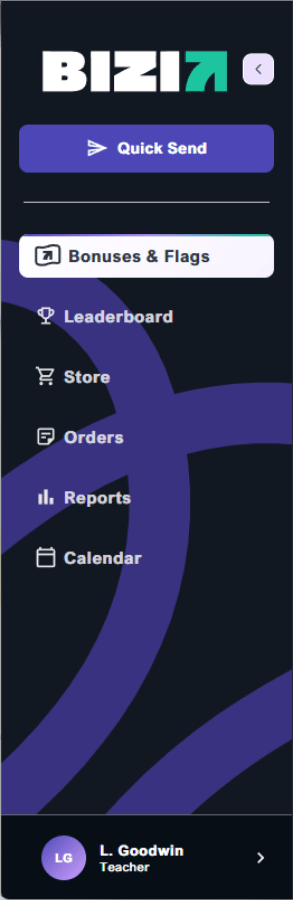
Navigate Bizi through the side rail:
Quick Send: Need to recognize a student outside your roster? Use Quick Send to issue a bonus or flag to any student at your school.
Leaderboard: A quick look at who is leading the way from each grade and class.
Store: The Store is where students shop using their BiziBucks. As a teacher, your main responsibility here is your My Store. The School Store runs itself.
Orders: View all orders placed by your students in one place. School Store orders are handled by your school. Teacher Store orders are your responsibility to fulfill, so check this regularly on and around Store Day.
Reports: Reports give you a real-time picture of how your students are doing. Access data on total BiziBucks earned, usage rates, attendance, behavior, academic grade averages, purchase activity, and bonus and flag statistics. Useful for spotting trends and recognizing students who may need extra encouragement.
Calendar: Stay on top of important dates. Order cutoffs, store days, and academic pay days are all here, so you're never caught off guard.
Account Menu (your initials): Access the Teacher Toolbox, the "How to Earn" guide, Contact Us, Terms and Policies, or log out.
There are four ways to earn:
Bonuses recognize students for doing the right thing; flags document behavior that blocks a student's daily or class period deposit. Both take less than 30 seconds to send, and both can be edited or removed if you make a mistake.
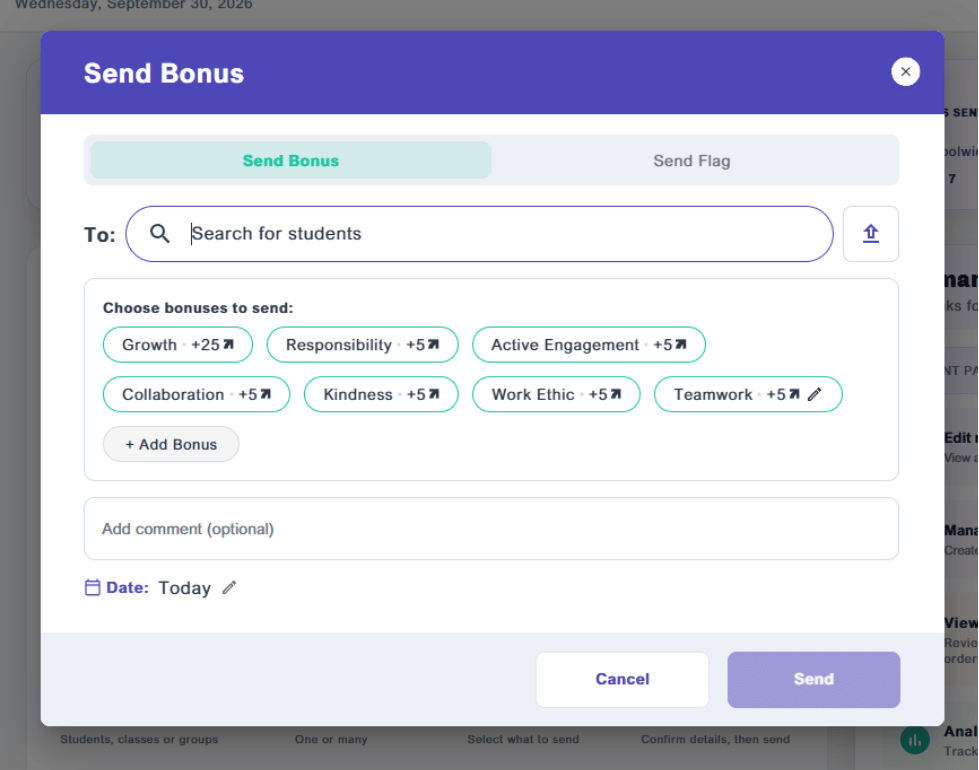
Using the Students option is ideal when you want to recognize or flag a student outside of your normal class roster, like in the hallway, at lunch, or during a school-wide event.
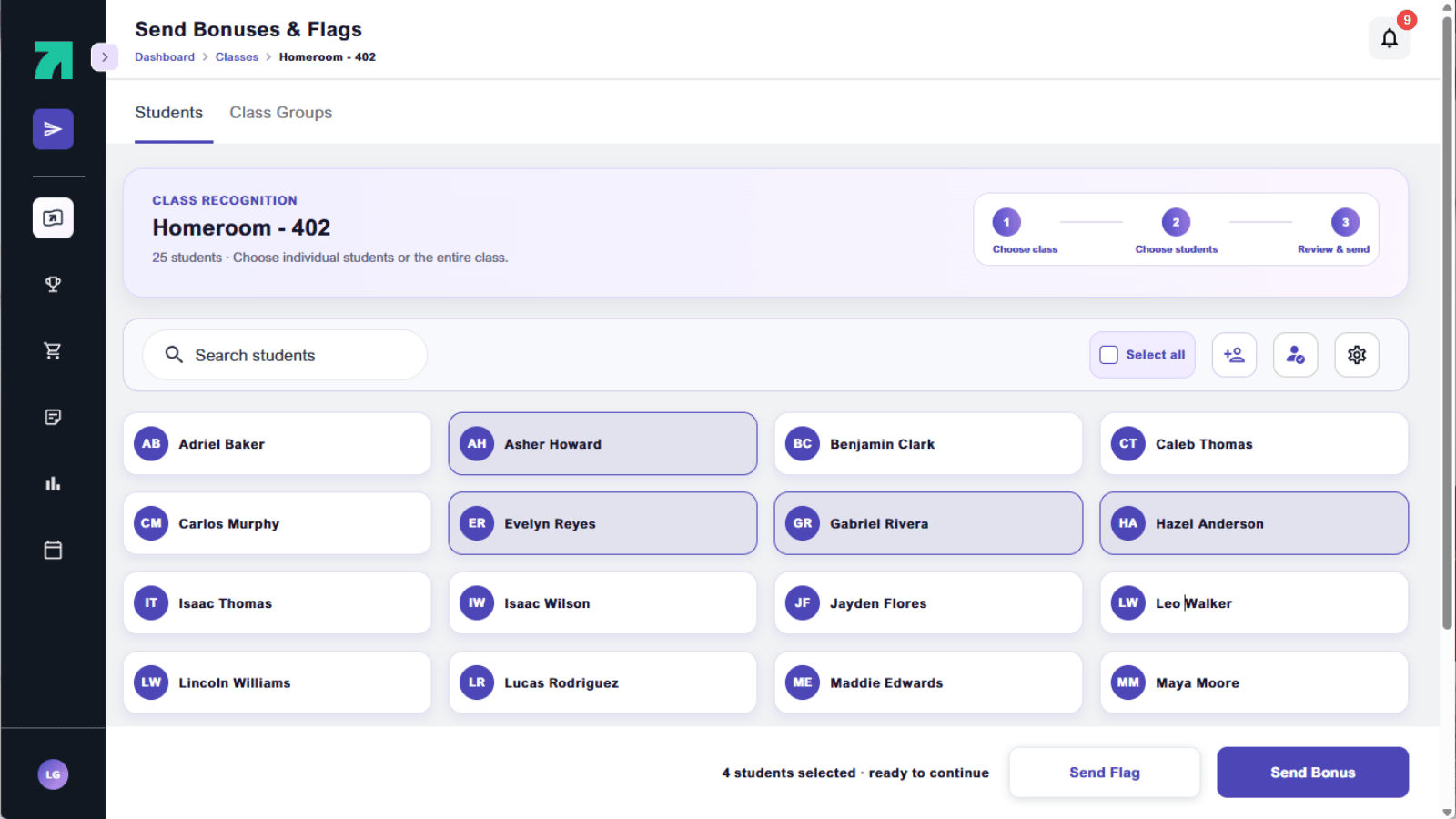
For everyday classroom use, your class roster lets you send bonuses or flags to one student, a few, or your entire class at once.
*Tip: To send your entire class at once, click Select All in the top right before choosing your action. Great for whole-class recognition moments.
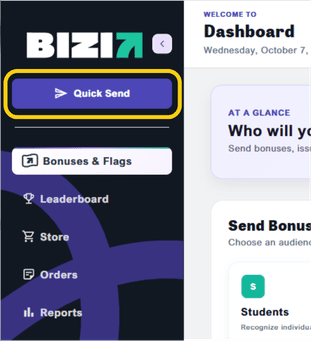
Just like Clicking the Students tile, Quick send allows you to send a bonus or a flag to any individual student in the school, but you can send it quickly from the side rail from anywhere in Bizi.
Bizi comes with default categories chosen by your administrators, but you can add your own to match your classroom culture. To create a custom category, click Quick Send, then select Add Bonus or Add Flag at the bottom of the category list. Type your new category name and click Save. It will be available to use right away.
*Note: The ability to create a custom bonus or flag is an administrator setting. If you do not see this available it is due to your administrator toggling off this setting.
Sent something by mistake or need to make a correction? No problem. Everything you've issued in the past two weeks lives in Recent Activity on your landing page.
*Note: Recent Activity shows the past two weeks of your issued bonuses and flags. For older activity, use the Reports section.
Go to Edit Recent Activity found in the Command Center on the Dashboard. Find the student and click Edit. From there, you can update the category, revise the comment, or remove it entirely. Recent Activity shows the past two weeks of issued bonuses and flags.
Click the Quick Send button in the top left corner of the platform and search for any student at your school. Quick Send works for students in the hallway, at lunch, during school-wide events — anywhere outside your normal roster. Select your category, add a comment if you'd like, and click Send.
Select Classes from the Dashboard, choose the class from your landing page, then click the Manager Co-Teachers button. To add a Co-Teacher, search for the teacher by name, and click Add. They will be able to access that class through their own account.
Click the Settings button on your class page. From there, go to Stats and toggle off whichever information you want to hide — Show Balance, Show Bonuses, and Show Flags can each be turned on or off independently. Now, you can confidently have your class roster up on your screen in front of the class.
On your landing page, find the class card you want to rename and click the three-dot menu in the corner. Select Rename, type the new name, and save. This only changes how the class appears in your view and does not affect anything in the SIS or for students.
Click the Settings button on your class roster, select Sort By, and choose Last Name. Your roster will update immediately.
Rosters sync from your school's SIS. If a student was recently added or transferred, they should appear in Bizi the following day after the nightly sync. If the issue persists, reach out to Bizi support through the Contact Us option in your Account Menu.
No. Attendance and academic deposits are fully automated through the nightly SIS sync. As long as you are entering grades and attendance in your SIS as normal, Bizi handles the rest. The only action that requires your input is issuing bonuses or flags.
No. Bonuses can be given as often as you'd like — the more consistently you recognize students, the more effective the program will be. For flags, a student's behavior deposit is blocked for that day or class period after the first flag. Issuing additional flags does not further impact their BiziBucks, but you can and should issue as many as needed for documentation purposes.
Head to Reports. From there, you can view data on BiziBucks earned, attendance rates, behavior trends, academic grade averages, bonus and flag statistics, and store purchase activity for your classes. Use the date range filters to narrow down by pay period or any custom range. Reports are a good way to spot students who may need extra encouragement before a payday.
Go to your Account Menu, click Contact Us, and send us a message. You can also visit the Teacher Toolbox anytime from your Account Menu for additional resources and guides.
Use your district login. No new username or password.
Log in using single-sign on to find everything you need.
How to log in
Need help logging in? Send your questions to:
support@bizimotivates.com
Navigate Bizi through the side rail:
Quick Send: Need to recognize a student outside your roster? Use Quick Send to issue a bonus or flag to any student at your school.
Leaderboard: A quick look at who is leading the way from each grade and class.
Store: The Store is where students shop using their BiziBucks. As a teacher, your main responsibility here is your My Store. The School Store runs itself.
Orders: View all orders placed by your students in one place. School Store orders are handled by your school. Teacher Store orders are your responsibility to fulfill, so check this regularly on and around Store Day.
Reports: Reports give you a real-time picture of how your students are doing. Access data on total BiziBucks earned, usage rates, attendance, behavior, academic grade averages, purchase activity, and bonus and flag statistics. Useful for spotting trends and recognizing students who may need extra encouragement.
Calendar: Stay on top of important dates. Order cutoffs, store days, and academic pay days are all here, so you're never caught off guard.
Account Menu (your initials): Access the Teacher Toolbox, the "How to Earn" guide, Contact Us, Terms and Policies, or log out.
There are four ways to earn:
Bonuses recognize students for doing the right thing; flags document behavior that blocks a student's daily or class period deposit. Both take less than 30 seconds to send, and both can be edited or removed if you make a mistake.
Using the Students option is ideal when you want to recognize or flag a student outside of your normal class roster, like in the hallway, at lunch, or during a school-wide event.
For everyday classroom use, your class roster lets you send bonuses or flags to one student, a few, or your entire class at once.
*Tip: To send your entire class at once, click Select All in the top right before choosing your action. Great for whole-class recognition moments.
Just like Clicking the Students tile, Quick send allows you to send a bonus or a flag to any individual student in the school, but you can send it quickly from the side rail from anywhere in Bizi.
Bizi comes with default categories chosen by your administrators, but you can add your own to match your classroom culture. To create a custom category, click Quick Send, then select Add Bonus or Add Flag at the bottom of the category list. Type your new category name and click Save. It will be available to use right away.
*Note: The ability to create a custom bonus or flag is an administrator setting. If you do not see this available it is due to your administrator toggling off this setting.
Sent something by mistake or need to make a correction? No problem. Everything you've issued in the past two weeks lives in Recent Activity on your landing page.
*Note: Recent Activity shows the past two weeks of your issued bonuses and flags. For older activity, use the Reports section.
Go to Edit Recent Activity found in the Command Center on the Dashboard. Find the student and click Edit. From there, you can update the category, revise the comment, or remove it entirely. Recent Activity shows the past two weeks of issued bonuses and flags.
Click the Quick Send button in the top left corner of the platform and search for any student at your school. Quick Send works for students in the hallway, at lunch, during school-wide events — anywhere outside your normal roster. Select your category, add a comment if you'd like, and click Send.
Select Classes from the Dashboard, choose the class from your landing page, then click the Manager Co-Teachers button. To add a Co-Teacher, search for the teacher by name, and click Add. They will be able to access that class through their own account.
Click the Settings button on your class page. From there, go to Stats and toggle off whichever information you want to hide — Show Balance, Show Bonuses, and Show Flags can each be turned on or off independently. Now, you can confidently have your class roster up on your screen in front of the class.
On your landing page, find the class card you want to rename and click the three-dot menu in the corner. Select Rename, type the new name, and save. This only changes how the class appears in your view and does not affect anything in the SIS or for students.
Click the Settings button on your class roster, select Sort By, and choose Last Name. Your roster will update immediately.
Rosters sync from your school's SIS. If a student was recently added or transferred, they should appear in Bizi the following day after the nightly sync. If the issue persists, reach out to Bizi support through the Contact Us option in your Account Menu.
No. Attendance and academic deposits are fully automated through the nightly SIS sync. As long as you are entering grades and attendance in your SIS as normal, Bizi handles the rest. The only action that requires your input is issuing bonuses or flags.
No. Bonuses can be given as often as you'd like — the more consistently you recognize students, the more effective the program will be. For flags, a student's behavior deposit is blocked for that day or class period after the first flag. Issuing additional flags does not further impact their BiziBucks, but you can and should issue as many as needed for documentation purposes.
Head to Reports. From there, you can view data on BiziBucks earned, attendance rates, behavior trends, academic grade averages, bonus and flag statistics, and store purchase activity for your classes. Use the date range filters to narrow down by pay period or any custom range. Reports are a good way to spot students who may need extra encouragement before a payday.
Go to your Account Menu, click Contact Us, and send us a message. You can also visit the Teacher Toolbox anytime from your Account Menu for additional resources and guides.






See Bizi in action.
Made for schools who
show up for students.
Download Bizi
for Educators


![[headshot] image of customer for a consulting firm](https://cdn.prod.website-files.com/6a4e78ccec3ae84519ed2bce/6a4e78ccec3ae84519ed2d1e_Container.png)
![[headshot] image of customer for a consulting firm](https://cdn.prod.website-files.com/6a4e78ccec3ae84519ed2bce/6a4e78ccec3ae84519ed2d1f_resource%20Container%202.png)
![[headshot] image of customer for a consulting firm](https://cdn.prod.website-files.com/6a4e78ccec3ae84519ed2bce/6a4e78ccec3ae84519ed2d20_resources%20container%203.png)
![[headshot] image of customer for a consulting firm](https://cdn.prod.website-files.com/6a4e78ccec3ae84519ed2bce/6a4e78ccec3ae84519ed2d21_resources%20container%204.png)
![[headshot] image of customer for a consulting firm](https://cdn.prod.website-files.com/6a4e78ccec3ae84519ed2bce/6a4e78ccec3ae84519ed2d22_resources%20container%205.png)