


Everything you need to know, all in one place.
As Store Manager, you're the engine behind the School Store.

You manage what's available, keep inventory accurate, and make sure students get their orders on time. Bizi gives you the tools to run a smooth, organized store without the guesswork.
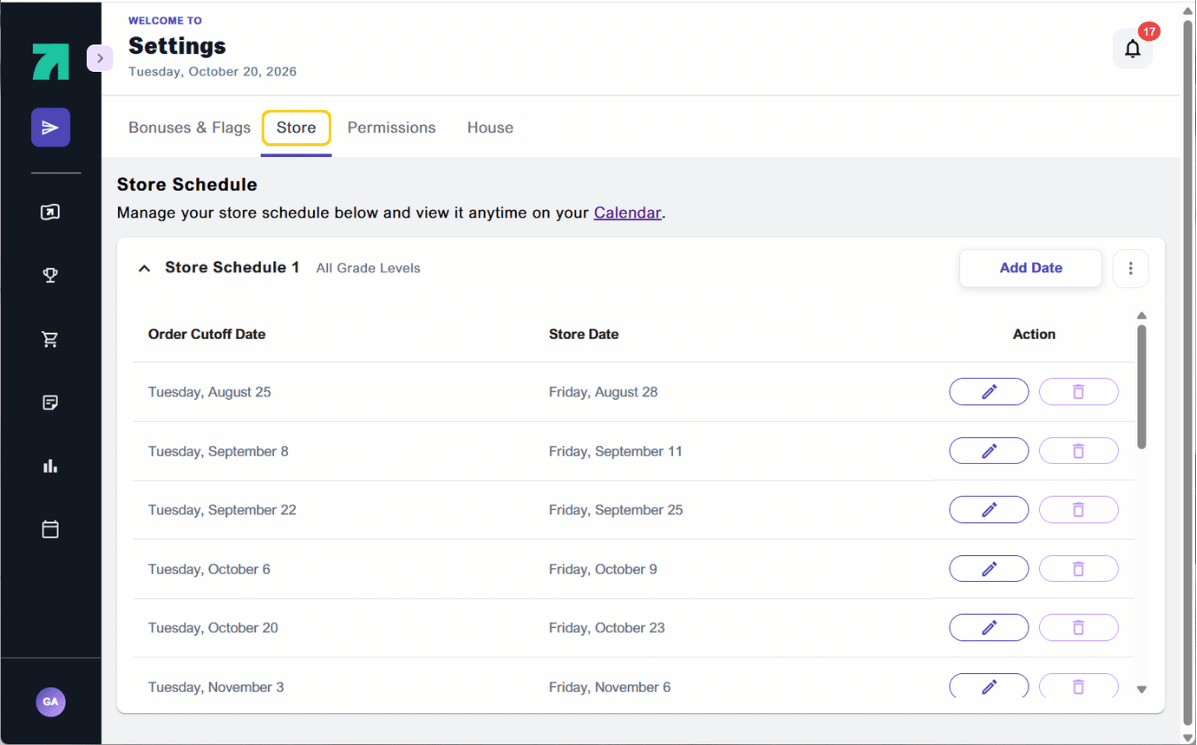
Your store was configured during onboarding, but schedules change, and Bizi makes it easy to adjust on the fly. To update your store schedule, modify order cutoff dates, or remove a store date entirely, go to your Account Menu, select Settings, and click the Store tab at the top.
Keeping your store dates current is important. Students see estimated arrival dates when they place orders, and those dates pull directly from your store schedule.
Everything listed in your School Store is visible and available to every student at your school, so keeping your inventory accurate and up to date is one of your most important responsibilities.
Adding Items to the Store
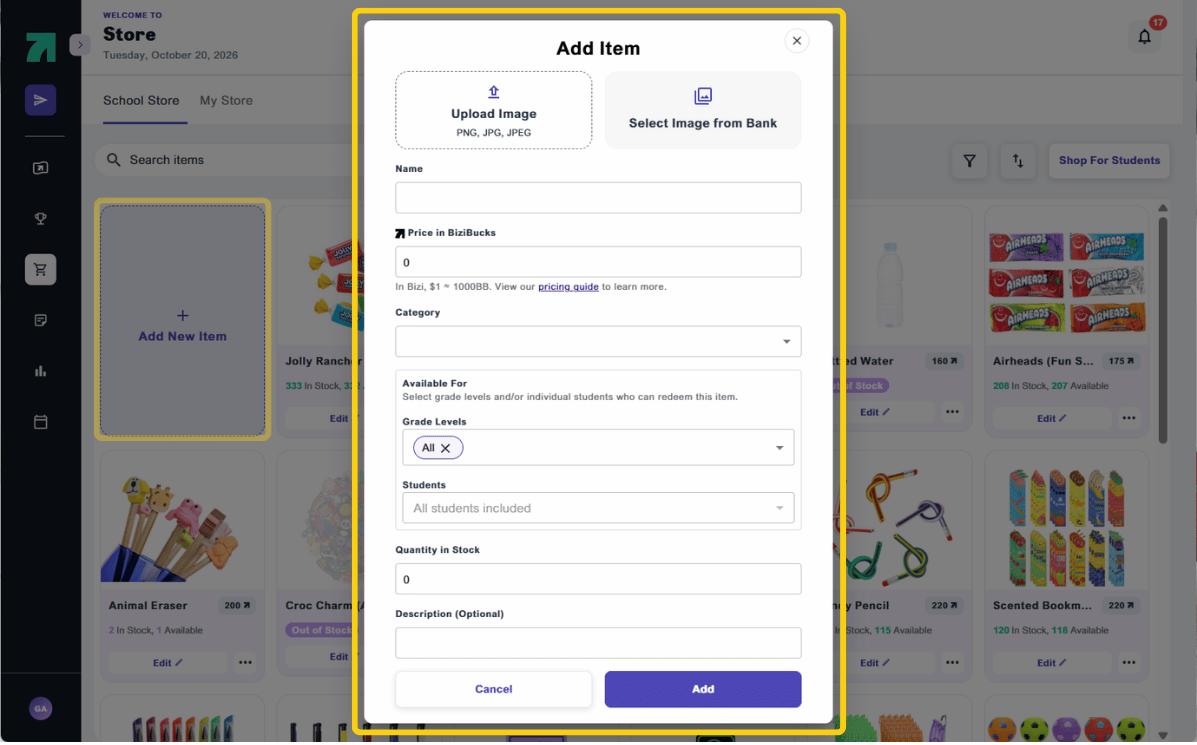
Adding a new item to your store takes just a few steps:
Editing Inventory
Once items are live, students can purchase them, so it's critical that the quantity listed in Bizi matches what you actually have on hand.
Managing Orders: Review, Package, Redeem, and Refund
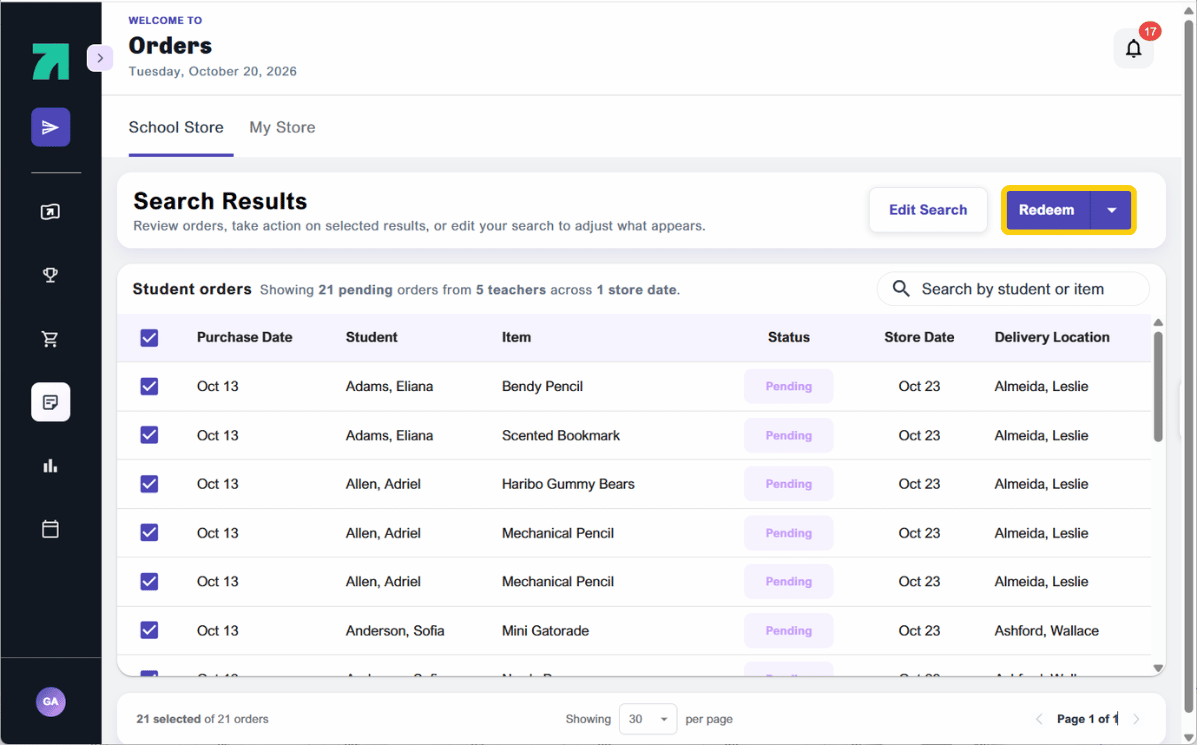
All student orders across your school are available in one place, giving you everything you need to fulfill and track orders from placement to pickup.
*Note: Marking a reward as packaged, does not automatically mark it redeemed. Each reward must be marked as redeemed after it is handed to the student.
A well-run store builds excitement and trust. When students know their orders will arrive accurately and on time, they stay motivated to keep earning.
Filter your orders by whichever criteria you need, such as class, student, teacher, or store date. Then, click the dropdown next to Redeem and select Export Selected. Here you'll have two options for your download:
Both are useful for printing packing lists, organizing fulfillment by class, or sharing order details with staff helping on Store Day.
Go to Orders and find the order you need to refund. Select the order, click the dropdown next to Redeem, and choose Refund. The student's BiziBucks will be returned to their account automatically. If you need to refund multiple orders at once, select all applicable orders before clicking the dropdown.
Go to your School Store, find the item you need to update, and click Edit. Update the quantity and click Save. Make it a habit to reconcile your physical inventory with what is listed in Bizi before and after every Store Day. If the quantity in Bizi reaches zero, the item will no longer be available for students to purchase until inventory is updated.
Purchase activity data is available in the Reports section, but accessing it requires School-wide Reports permissions. If you do not currently have that access, reach out to your school administrator and ask them to assign you the School-wide Reports permission level in Staff Permissions. Once enabled, you can view purchase activity across your school, filter by date range or pay period, and use that data to inform what to restock, what to retire, and what types of rewards are driving the most engagement.
When adding a new item to the store, click the Pricing Guide for BiziBuck value suggestions based on item type. The Pricing Guide gives you a starting point based on how other schools have priced similar items. The goal is to keep rewards attainable enough to motivate students while stretching your store budget. If you are unsure, start with the suggested range and adjust based on how quickly items are moving.
Click the Add New Item card on the store landing page. For common items, use Select Image from Bank. This uploads an image automatically and autopopulates other item fields, saving you time. For custom items, upload your own image and fill in the details manually. Click Add when you are ready to make the item live. Every item is reviewed by a Bizi team member before it appears to students, so allow a short window for that approval.
Go to your Account Menu, click Contact Us, and send us a message. You can also email us directly at support@bizimotivates.com.
As Store Manager, you're the engine behind the School Store.
You manage what's available, keep inventory accurate, and make sure students get their orders on time. Bizi gives you the tools to run a smooth, organized store without the guesswork.
Your store was configured during onboarding, but schedules change, and Bizi makes it easy to adjust on the fly. To update your store schedule, modify order cutoff dates, or remove a store date entirely, go to your Account Menu, select Settings, and click the Store tab at the top.
Keeping your store dates current is important. Students see estimated arrival dates when they place orders, and those dates pull directly from your store schedule.
Everything listed in your School Store is visible and available to every student at your school, so keeping your inventory accurate and up to date is one of your most important responsibilities.
Adding Items to the Store
Adding a new item to your store takes just a few steps:
Editing Inventory
Once items are live, students can purchase them, so it's critical that the quantity listed in Bizi matches what you actually have on hand.
Managing Orders: Review, Package, Redeem, and Refund
All student orders across your school are available in one place, giving you everything you need to fulfill and track orders from placement to pickup.
*Note: Marking a reward as packaged, does not automatically mark it redeemed. Each reward must be marked as redeemed after it is handed to the student.
A well-run store builds excitement and trust. When students know their orders will arrive accurately and on time, they stay motivated to keep earning.
Filter your orders by whichever criteria you need, such as class, student, teacher, or store date. Then, click the dropdown next to Redeem and select Export Selected. Here you'll have two options for your download:
Both are useful for printing packing lists, organizing fulfillment by class, or sharing order details with staff helping on Store Day.
Go to Orders and find the order you need to refund. Select the order, click the dropdown next to Redeem, and choose Refund. The student's BiziBucks will be returned to their account automatically. If you need to refund multiple orders at once, select all applicable orders before clicking the dropdown.
Go to your School Store, find the item you need to update, and click Edit. Update the quantity and click Save. Make it a habit to reconcile your physical inventory with what is listed in Bizi before and after every Store Day. If the quantity in Bizi reaches zero, the item will no longer be available for students to purchase until inventory is updated.
Purchase activity data is available in the Reports section, but accessing it requires School-wide Reports permissions. If you do not currently have that access, reach out to your school administrator and ask them to assign you the School-wide Reports permission level in Staff Permissions. Once enabled, you can view purchase activity across your school, filter by date range or pay period, and use that data to inform what to restock, what to retire, and what types of rewards are driving the most engagement.
When adding a new item to the store, click the Pricing Guide for BiziBuck value suggestions based on item type. The Pricing Guide gives you a starting point based on how other schools have priced similar items. The goal is to keep rewards attainable enough to motivate students while stretching your store budget. If you are unsure, start with the suggested range and adjust based on how quickly items are moving.
Click the Add New Item card on the store landing page. For common items, use Select Image from Bank. This uploads an image automatically and autopopulates other item fields, saving you time. For custom items, upload your own image and fill in the details manually. Click Add when you are ready to make the item live. Every item is reviewed by a Bizi team member before it appears to students, so allow a short window for that approval.
Go to your Account Menu, click Contact Us, and send us a message. You can also email us directly at support@bizimotivates.com.






See Bizi in action.
Made for schools who
show up for students.
Download Bizi
for Educators


![[headshot] image of customer for a consulting firm](https://cdn.prod.website-files.com/6a4e78ccec3ae84519ed2bce/6a4e78ccec3ae84519ed2d1e_Container.png)
![[headshot] image of customer for a consulting firm](https://cdn.prod.website-files.com/6a4e78ccec3ae84519ed2bce/6a4e78ccec3ae84519ed2d22_resources%20container%205.png)